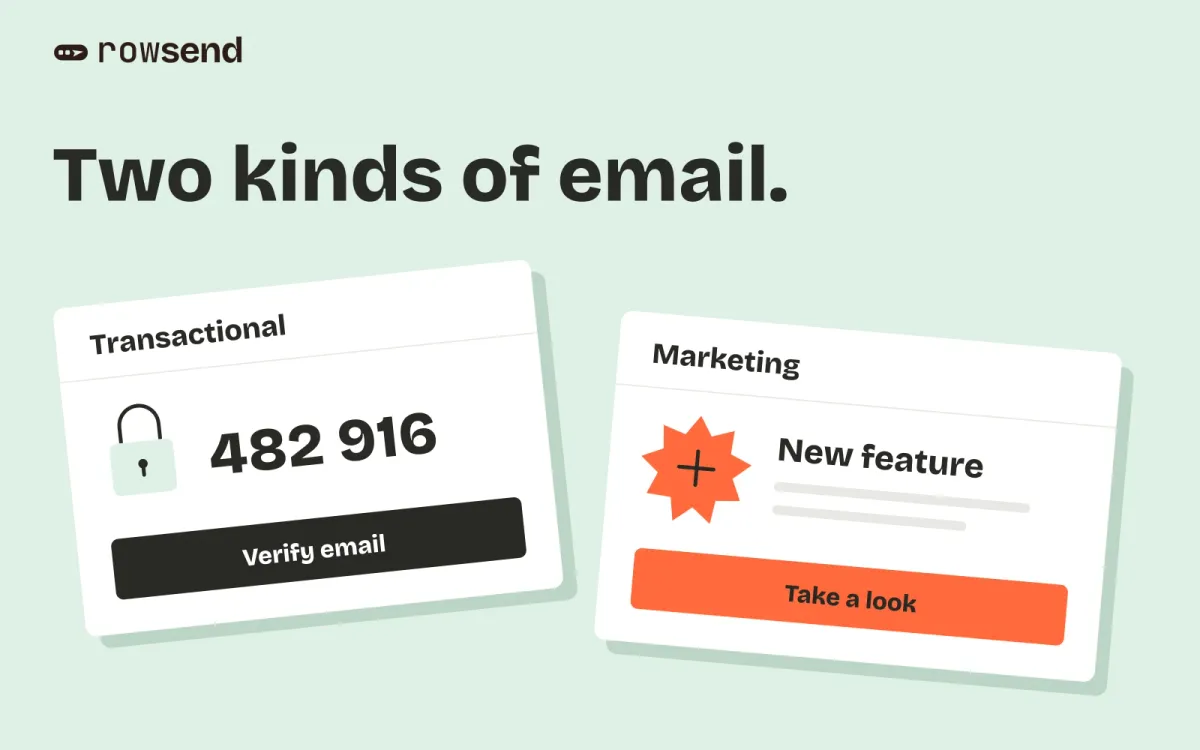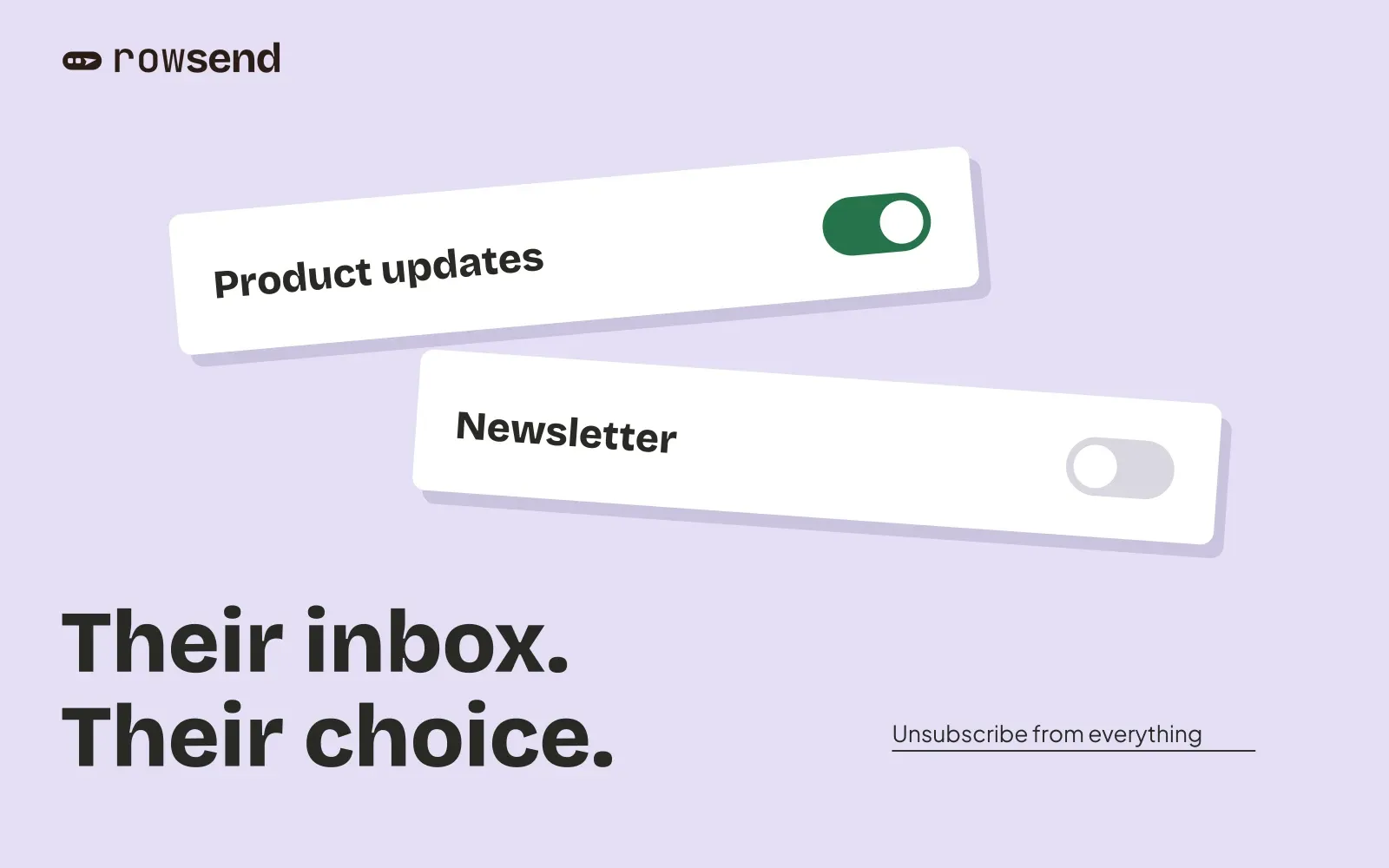
Someone may want to hear when your product changes without reading a weekly roundup. Another person may enjoy your articles but rarely need a feature announcement.
Give those messages separate topics, such as Product updates and Newsletter. A reader can then stop the newsletter while keeping feature announcements.
In Rowsend, every campaign belongs to a topic. A recipient can unsubscribe from that topic, stop every topic, or change their preferences when your companion runs on Rowsend Cloud or your own server.
Name topics for the person receiving the email
Start with the kinds of messages you actually send. A small product might need two:
- Product updates: New features and changes to the product, about once a month.
- Newsletter: Practical articles and examples, sent every other Friday.
Those descriptions tell someone what to expect. Only promise a frequency you can maintain. If the schedule varies, say that plainly instead of inventing a regular one.
Avoid internal names such as “Lifecycle v2” or “Marketing stream B.” Recipients see topic names and descriptions on their preference pages. They should be able to decide without knowing how your team organizes campaigns.
You do not need a topic for every individual announcement. A useful topic describes an ongoing kind of email that someone might consistently want or decline.
Start with the default, then separate real choices
Every Rowsend project begins with one topic named after the project. New campaigns start there. If you send one kind of email, that can be enough.
When you need a second topic, open Project settings → Topics and choose New topic. Add the name and a description, then pick the topic in each campaign’s Topic field.
Before making the choice available, check your existing drafts and scheduled campaigns. A newsletter assigned to Product updates defeats the distinction you just offered.
Suppose a reader leaves Product updates on and switches Newsletter off. A campaign assigned to Product updates can still reach them, subject to its audience and any other suppression. A campaign assigned to Newsletter cannot. Selecting a topic does not select an audience, so check the campaign’s segments too.
Carry existing opt-outs forward
Adding a topic should not become a way to restart email to people who already left.
When you create a topic, Rowsend offers to copy the default topic’s existing unsubscribes. Leave that option selected unless you have a specific reason to believe those recipients want this separate kind of email.
Consider what the person saw when they originally unsubscribed. If there was only one stream of messages, they had no way to distinguish a newsletter from product announcements. Treat that history carefully rather than assuming a new topic creates a new audience.
This is also a reason to choose clear names early. A topic whose purpose changes every month is hard for readers to manage.
Make the recipient’s choices easy to find
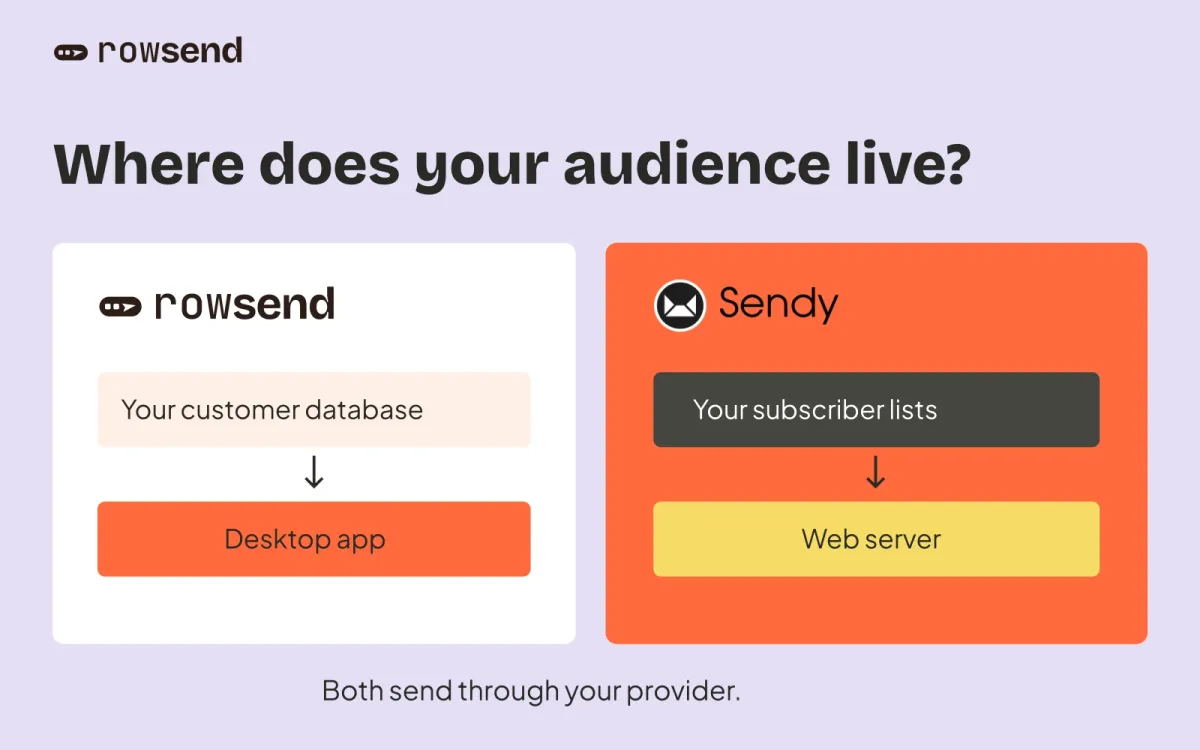
With Rowsend Cloud or a self-hosted companion, readers have several ways to change their choices:
- The email’s unsubscribe link opens a page offering to leave the current topic or everything.
- A mail app’s one-click unsubscribe control, when shown, leaves the campaign’s topic only.
- The preferences page lets readers choose topics, leave everything, or undo their own unsubscribes.
When a project has more than one live topic, Rowsend adds a preferences link to its own unsubscribe footer line. In the block editor, you can place a Preferences link block. In an HTML design, use <a href="{{preferences_url}}">Email preferences</a>. Keep the unsubscribe link and mailing address visible too. The footer tags guide explains how custom placement affects Rowsend’s automatic lines.
Keep the language literal. “Email preferences” and “Unsubscribe” tell readers what a link does. A playful label can make a simple task needlessly difficult.
When the companion runs only on your computer, recipients reply to unsubscribe and you record the choice yourself. In Settings → Companion, choose Cloud or your own server if you need public preference pages. A topic in the editor alone does not make those pages available. Compare the companion options before promising readers a preferences link.
Respect choices across campaigns
Rowsend excludes a contact from a campaign if they unsubscribed from its topic or from everything. Bounces and spam complaints stop every topic; the recipient cannot undo those through the preferences page.
If someone asks your team to stop emailing them, open their contact on the Contacts page. Unsubscribe stops every topic. With more than one topic, the individual topic switches let you stop just the kind they asked about. These manual choices appear locked on the preference page, so the recipient cannot undo a restriction you applied.
Archiving an unused topic hides it from new campaigns and preference pages while preserving its history. It does not erase past unsubscribes. Rowsend’s default topic cannot be archived.
Before the next campaign, check its topic alongside the subject and audience. If someone keeps Product updates and declines Newsletter, the next product update should still look like a product update. Use the topics guide when setting up or reviewing those choices.