“All customers” is easy to choose. It is harder to write something useful to someone who signed up this morning and someone who has used your product for three years.
Choose the audience while the message is still a sentence. “Help new customers find their first project” gives you a more useful starting point than “Send our monthly email.”
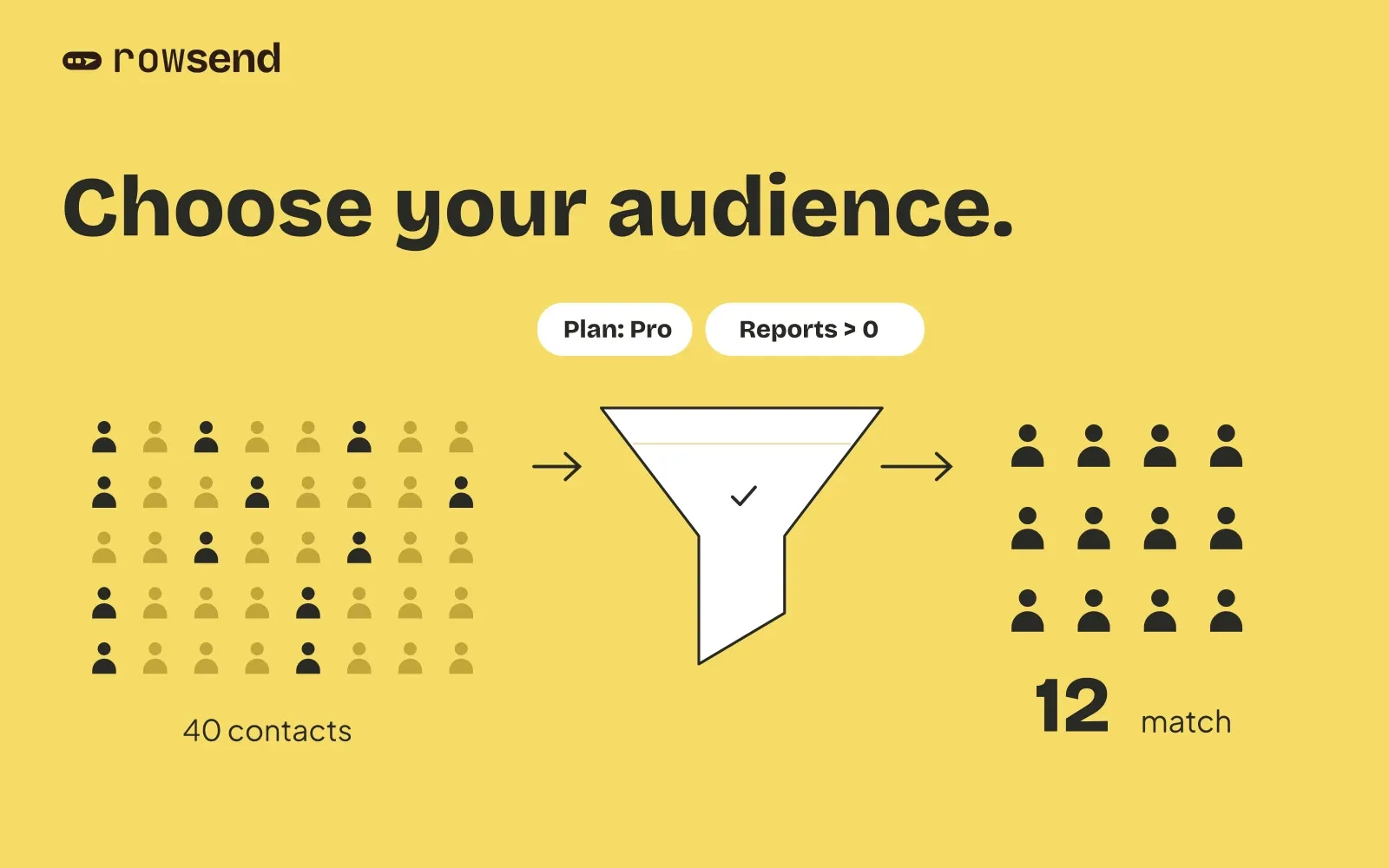
In Rowsend, a segment is a saved filter on contacts from your database. It is a way to describe who a campaign is for, using information your product already records.
Start with a question your data can answer
Before adding conditions, describe the person you want to reach in everyday language:
People who recently signed up, but have not yet created a project.
That description needs a signup date and a way to know whether someone created a project. Rowsend has a built-in Signed up field, which your source needs to populate. The project information would come from your database as a custom field, such as project_count.
Ask whoever maintains your database to expose the fields you need. Rowsend reads the connected source; it does not guess what a customer’s activity means. The custom fields guide explains which values filters can use.
Do not build an audience around data you have not collected. A last sign-in date can tell you when someone signed in. It cannot tell you whether they found a report helpful.
Use a small set of conditions
Here are three fictional campaign audiences. Each custom field must exist in your connected source with values the filter can use.
Use All when every condition must match. Use Any when one matching condition is enough. Switching between them can change a narrow audience into a broad one, so reread the sentence after you make that choice.
There is a second choice to check at campaign level. Including two segments reaches contacts who match either segment. If you need customers who match both, put both conditions in one All segment rather than selecting two separate included segments.
Help new customers create a project
Match All: Signed up is in the last 7 days and project_count equals 0.
Write a message that helps the reader create their first project. Check that the source returns a numeric zero for someone with no projects. An empty field is not a count of zero.
Announce a paid reporting feature
Match All: plan is pro and report_count is greater than 0.
These customers have access to the feature and experience with reports. The email can focus on the new action, as in the product update example.
Ask established customers for feedback
Match All: Signed up is more than 30 days ago and Last sign-in is in the last 14 days.
Ask about an experience the recipient has had time to form. Check that both dates are available for these contacts. A missing last sign-in does not establish recent activity.
Treat missing information as a separate case
A blank value is not always the same as a negative answer.
Suppose plan is empty for some contacts. A filter saying “plan isn’t pro” includes those contacts, as well as people on a known free plan. In Rowsend, negative text conditions such as isn’t and doesn’t contain include contacts missing the field.
If you mean “people whose known plan is free,” use plan is free. If you mean “people with any known plan other than pro,” add plan has any value and join the conditions with All.
When a count looks surprising, check for missing fields before rewriting the message. A useful filter depends on what your database actually returns.
Give exclusions a specific job
For the reporting announcement, include the Pro customers with reports. You might exclude people who already use the new feature, along with internal accounts.
If your source provides saved_report_count and a yes/no is_team field, create an exclusion segment with Any:
- saved_report_count is greater than 0
- is_team is yes
That removes someone who meets either exclusion. With All, it would remove only teammates who also saved a report, leaving other teammates in the audience. These are example fields, not information Rowsend supplies automatically.
Name the segment for those rules, such as “Saved reports users or team accounts.” Review older exclusions before reusing them. “Recent customers” does not tell you which date or time window it uses.
Check the final audience, not just the segment
Save each filter with a name that describes its conditions, such as “New signups without a project.” A name like “Onboarding” leaves more room for misunderstanding later.
Open the segment on the Contacts page and inspect a few matching contacts. Check the values behind the filter, especially if you recently changed the database mapping. Sync if you need fresh source data.
In the campaign editor, use Change beside To to select included and excluded segments. With no included segment, the campaign starts from every contact, then applies exclusions and unsubscribe rules. Do not leave it empty expecting an audience of zero.
Rowsend also leaves out contacts who unsubscribed from everything or from the campaign’s topic, bounced, or complained. The count in the send dialog can therefore be smaller than the segment count. Check the topic, inclusion rules, exclusions, and final count together.
Recheck a scheduled campaign after changes
By default, Rowsend resolves recipients when the campaign starts. Segment edits and contacts synced after scheduling can change who receives it.
When sending with the computer off is enabled, Rowsend fixes the recipients when you schedule and sends the prepared messages to the companion. Later segment edits and newly synced contacts do not change that list. Unschedule and schedule again to pick up changes. The Cloud sending guide explains this option.
Avoid editing a shared segment casually when scheduled campaigns depend on it. If the next campaign needs a different definition, create a separate segment with a clear name.
Once you can explain why each matching person should receive the message, start writing. You already know what context the opening paragraph needs and what the reader should do next.