Your team shipped something. The release notes are ready, the feature has a name, and someone asks for an email to every customer.
Choose one reader and one action before you open the editor. “Know that we shipped saved reports” is less useful than “Save the report they rebuild every Monday.”
Build the email around that action. Explain who can use the feature, what it changes for them, and where to try it. The example below turns a fictional reporting product’s release into a campaign you can adapt.
Start with one reader and one job
Suppose saved reports are available on the product’s Pro plan. Customers who already build reports have an immediate use for the feature. Someone who signed up yesterday and has never opened a report needs more context.
A useful first audience is customers whose plan is pro and whose report_count is greater than 0. These are example custom fields, so your connected database must expose them before you can filter on them. They describe product activity, not email engagement.
Write the first email for the first group. Answer four questions before drafting:
- Who already does the task this feature improves?
- What frustrating step can they now skip?
- Where should they go to try it?
- Is the feature available on their plan today?
If the feature is only available on paid plans, make that clear. If it is still rolling out, email people when they can actually use it.
For help turning that audience into a saved filter, read Choose the audience before you write the email.
Write the action before the announcement
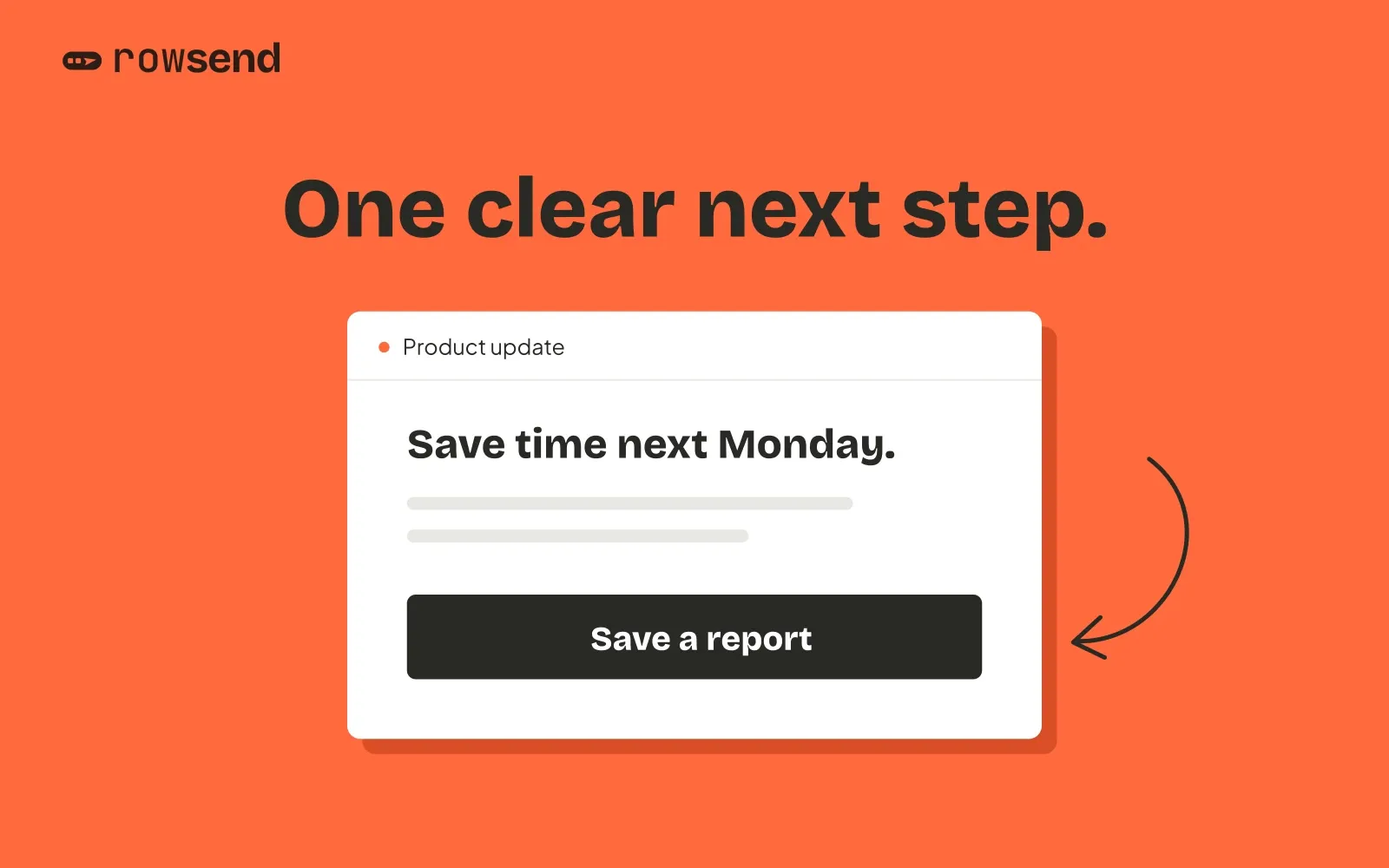
Start your draft with the button. “Save your first report” tells you what the rest of the message must explain. “Learn more” leaves that decision to the reader.
A short example for our fictional reporting product:
Save the report you run every Monday
You can now save a report’s filters and columns, then open it again without setting everything up.
Open a report you use often and choose Save report. Give it a name, and it will be waiting in your saved reports next time.
Available on the Pro plan.
Save your first report
Point the button to the place where someone can start, such as their report list. Check the path after signing in as well as the link itself. Sending someone to your homepage leaves them to find the feature again.
A screenshot is useful if it helps someone find the control. Give it alt text and keep the instructions in the body too, so the email still makes sense when images are hidden.
If you also shipped an unrelated billing change, give it its own message or leave it in the release notes. Each extra announcement makes the main action harder to find.
Make the subject and preview work together
The subject should still make sense outside the email. “A big update is here” asks people to open it before they know whether it matters.
For the saved reports example:
- Subject: Save the reports you run every week
- Preview: Keep your filters and columns for next time. Now available on Pro.
The preview adds detail instead of repeating the subject. Be direct about availability rather than using urgency that the product does not justify.
In Rowsend, the campaign editor has separate subject and preview fields. Write both deliberately so the inbox summary does not have to borrow the opening sentence.
Send a test that answers real questions
In Rowsend, choose Send test and enter your address. Read the result on your phone as well as your computer. Work through these checks:
- Do the sender name, subject, and preview make sense together in the inbox?
- Does the main button reach the intended screen, including after login?
- Can you understand the message with images hidden?
- Do merge fields produce a complete sentence? A missing field becomes empty text, so a greeting such as “Hi {{name}}” needs another wording if some contacts have no name.
- Are the mailing address and unsubscribe instructions visible?
For a test send, Rowsend looks for a contact whose email matches the test address. If it finds one, it uses that contact’s name and custom fields. Otherwise, those fields are empty. One successful test does not check every contact’s values. Inspect your source data for missing fields before using them in the subject or body.
The test adds [Test] to the subject and does not create campaign send history. With a public companion, its unsubscribe link opens a test notice rather than changing a real preference. Check the recipient choices separately. When the companion runs on your computer, the footer asks people to reply to unsubscribe instead.
Check the audience, then send
In the editor, check the To audience and Topic, then choose Send to N contacts. Read the recipient count, from address, and warnings in the dialog before confirming. A product announcement should not go to people who only asked for a newsletter.
Choose Now to send immediately or Later to pick a time. By default, your Mac must be awake and Rowsend running at that time. Cloud or a self-hosted companion can send with the computer off when you enable that option. Check the sending guide before relying on it for a launch.
After sending, review bounces, complaints, and unsubscribes for sending problems. Delivery counts are available with Amazon SES, Postmark, and Mailgun; SMTP does not report them. Rowsend does not track opens or clicks. To understand whether people used saved reports, check the activity your product records.
If the structure helped, create a template with the reusable subject and body. For the next announcement, replace the example details and check the audience again before sending.