Open SaaS ships with auth, billing and an admin dashboard. Its email guide covers transactional mail through SendGrid, Mailgun or SMTP. It says nothing about announcing a feature, a price change or a launch.
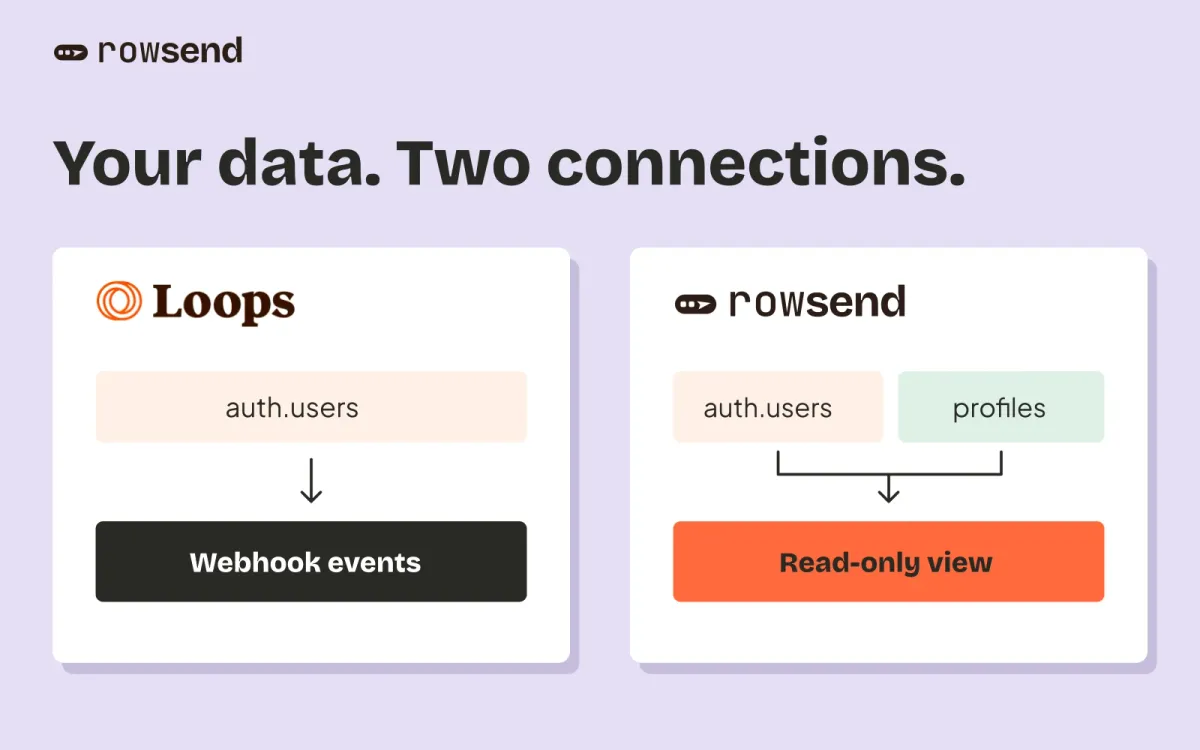
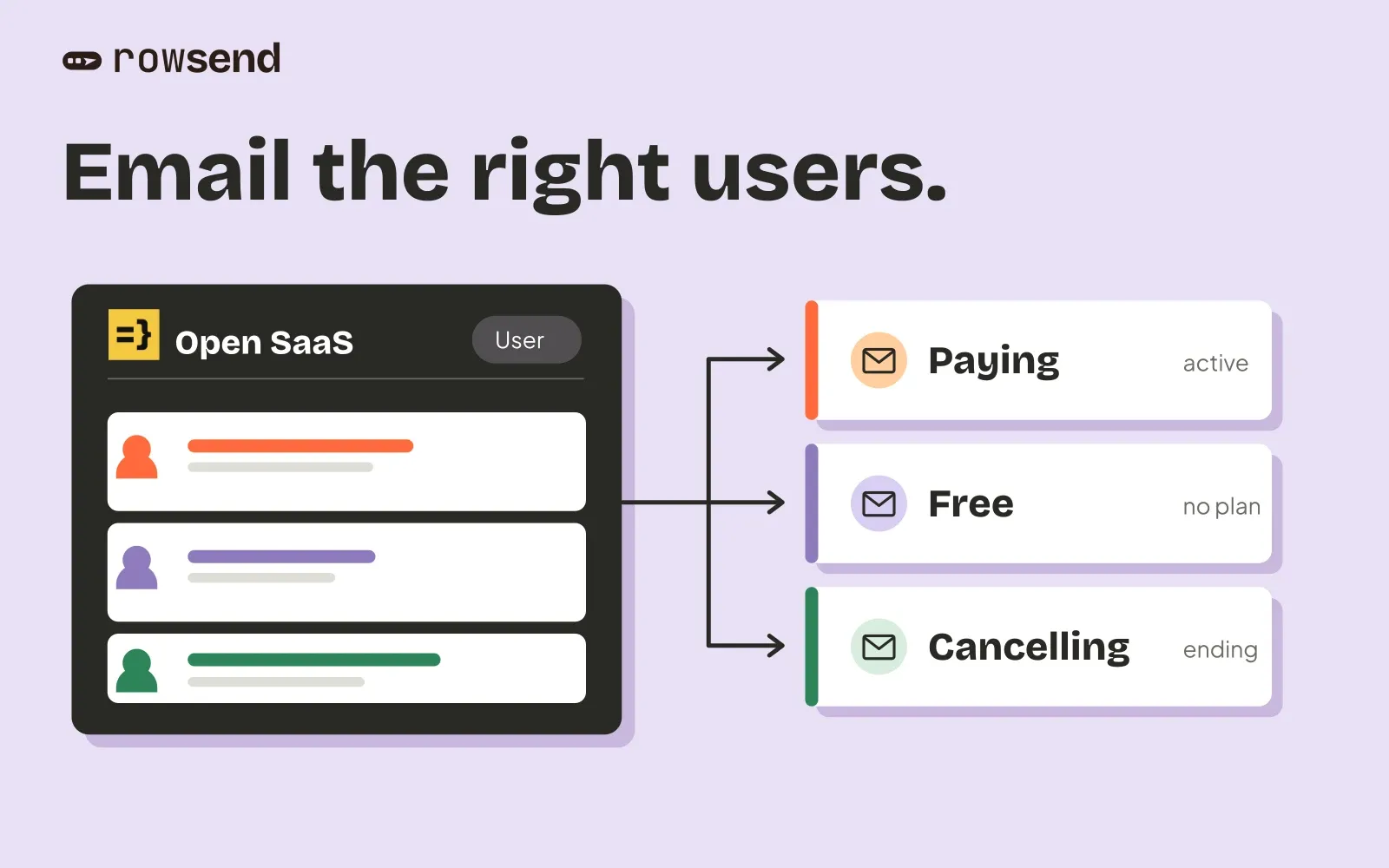
Your users are already in the Postgres database Wasp created, with their plan and payment status next to their email. Rowsend reads that table through a read-only view. You can email paid, free and cancelling users with no sync job or webhook.
The table you’re reading
Open SaaS’s Prisma schema defines a User model with these fields that matter for email:
| Column | Meaning |
|---|---|
id |
Stable user id |
email |
Nullable. Users who signed up another way may have none |
username |
Nullable |
createdAt |
Signup date |
subscriptionStatus |
active, cancel_at_period_end, past_due, deleted or null |
subscriptionPlan |
hobby, pro or null |
datePaid |
Last payment date |
credits |
Remaining credits |
isAdmin |
Team accounts |
Check your own schema.prisma first. The kit changes between versions, and your app may add or rename columns. On Postgres, Prisma creates the table as "User" with quoted camelCase columns.
Rowsend needs id, email and updated_at. User has no updatedAt column, so the view builds one from the two dates it does have:
select u.id, u.email, u.username as name, u."createdAt" as created_at, greatest(u."createdAt", u."datePaid") as updated_at, u."subscriptionStatus" as subscription_status, u."subscriptionPlan" as subscription_plan, u.credits, u."isAdmin" as is_adminfrom public."User" as uwhere u.email is not nullRows with no email can’t be emailed, so the view leaves them out. greatest ignores a null datePaid, so a user who never paid gets their signup date.
One limit of that view
Rowsend picks up changed rows by updated_at. This version moves it forward when someone signs up or pays. It does not move when subscriptionStatus changes alone, for example when a user cancels without a new payment. That user’s row keeps its old values until the next full sync.
To close the gap, add one line to the User model in schema.prisma and run a migration:
updatedAt DateTime @updatedAtThen select u."updatedAt" as updated_at in the view. Prisma sets it on every update made through the client. Writes that bypass Prisma, such as a manual UPDATE in a SQL console, won’t set it.
Connect the database
In Rowsend, open Contacts and click Connect a database. Choose your host: Supabase, Neon, PlanetScale or plain Postgres. Open SaaS deploys to Fly.io by default, whose Postgres is plain Postgres.
Choose Write SQL and paste the select above. Copy SQL gives you the full setup script, which creates the rowsend.contacts view and a read-only rowsend_reader login. Run it in your database, then click Test and connect. The syncing guide explains what the login can and can’t do.
Keep payment-processor ids, the Lemon Squeezy portal URL and other billing fields out of the select. Rowsend needs the plan and status, not the customer ids.
Check the first sync
Open a few synced contacts and compare them with rows in your database. Look at one paying user, one free user and one with cancel_at_period_end. Check that subscription_status and subscription_plan appear as custom fields.
Build the segments
Segments use the custom fields from the view. Three that most Open SaaS apps want:
- Paying:
subscription_statusisactive - Cancelling:
subscription_statusiscancel_at_period_end - Free:
subscription_planis empty
Add an exclusion segment for is_admin is yes, so your team doesn’t get its own announcement. Choose segments explicitly in the campaign’s To field. An empty include list starts with every contact. The audience guide covers how segments combine.
Pick the campaign and the topic
A pricing change goes to paying users. A new feature goes to everyone who can use it. A note to people who are cancelling is a third kind of email. Give each its own topic, so someone who opts out of launch news can still get your other emails.
Billing receipts and failed-payment messages are transactional. Keep them in your app’s own email sender. The transactional and marketing email guide explains the split.
Send a test, then the campaign
Connect your sending provider, then use Send test to check the sender, the button link and the footer. Review the recipient count in the send dialog. If it differs from what you expect, check the exclusions first. Rowsend also leaves out anyone who is suppressed for the topic, including bounces and complaints.
If your app is live, finish with three checks: a known paying user is in the audience, an admin account is not, and a contact who unsubscribed stays excluded after the next sync.