Track email campaigns on the project home page
Home is the first item in the sidebar and where Rowsend opens once a project’s Get started checklist is done or hidden. Until then, Home stays out of the sidebar and its link opens Get started.
Pick 7d, 30d or 90d at the top to choose how far back the numbers go. Rowsend remembers the choice for each project on this computer. A range runs from midnight at the start of its first day until now.
Needs attention
Section titled “Needs attention”Problems show at the top, worst first, each with a button to the screen that fixes it:
- a campaign that paused itself for bounces or spam complaints
- Rowsend Cloud with no active plan, so nothing can send
- a scheduled campaign that didn’t go out
- failed emails in a campaign from the last 30 days, until you retry them
- a failed contact sync
- no sender, a sender that isn’t verified, or bounces that aren’t tracked
Each item goes away when the problem is fixed. Some problems don’t always have a fix, so three items can also be set aside:
- Failed emails show the reason your provider gave. Once the cause is sorted out, Retry failed on the campaign page sends them again. An address your provider refuses for good won’t work on retry; choose Leave them instead.
- A scheduled campaign that didn’t go out can be dismissed if you no longer want to send it.
- Bounces aren’t tracked can be dismissed if you’ve chosen SMTP on this computer knowing that.
A dismissed item comes back when something changes: more emails fail, the campaign is scheduled again and fails, or you change your provider, where sending runs or the bounce domain.
The numbers
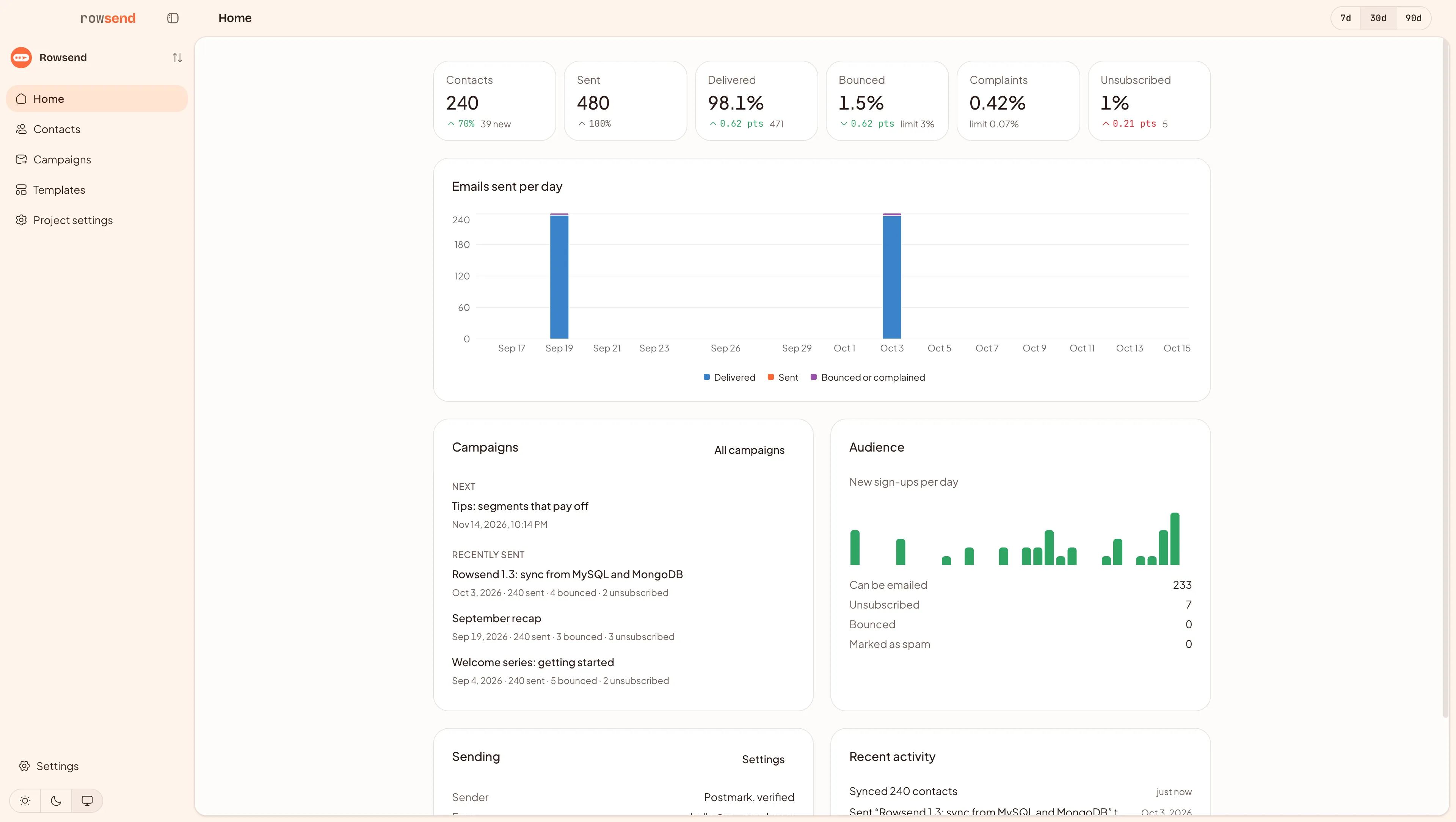
Section titled “The numbers”| Card | What it counts |
|---|---|
| Contacts | Everyone synced from your database, and how many signed up in the range |
| Sent | Emails handed to your provider in the range, and how many failed |
| Delivered | The share your provider confirmed. SMTP doesn’t report deliveries, so this card is empty for SMTP senders |
| Bounced | The share that hard bounced, beside your bounce protection limit |
| Complaints | The share marked as spam, beside the same limit |
| Unsubscribed | People who unsubscribed in the range, as a share of emails sent |
Under 200 emails sent in a range, the percentage cards show counts and “Too few sends to tell” instead, since two bounces out of twenty would read as a 10% bounce rate.
Arrows compare with the same length of time just before the range. Counts change by a percentage and rates by percentage points. A rate only gets an arrow when both ranges sent at least 200 emails. Green means better and red means worse: more contacts and deliveries are good, more bounces, complaints and unsubscribes are bad. Sent volume is neither.
Below the numbers
Section titled “Below the numbers”- Emails sent per day stacks each day’s emails by what became of them: delivered, sent, or bounced or marked as spam. Before your first send, this is a link to write a campaign instead.
- Campaigns shows what’s sending now and how far it has got, the next scheduled campaign, and the three sent most recently.
- Audience charts new sign-ups, then how many contacts can still be emailed and how many unsubscribed, bounced or marked mail as spam. With more than one topic, it also lists unsubscribes from each.
- Sending shows your provider and from address, where sending runs, whether bounces are tracked, about how much went out in the last 24 hours against your daily limit, and the warm-up step.
- Recent activity lists the latest sync, sync failures, campaign sends and changes AI agents made.
Everything on Home is worked out from your project’s data each time you open it, and it updates while a campaign sends.